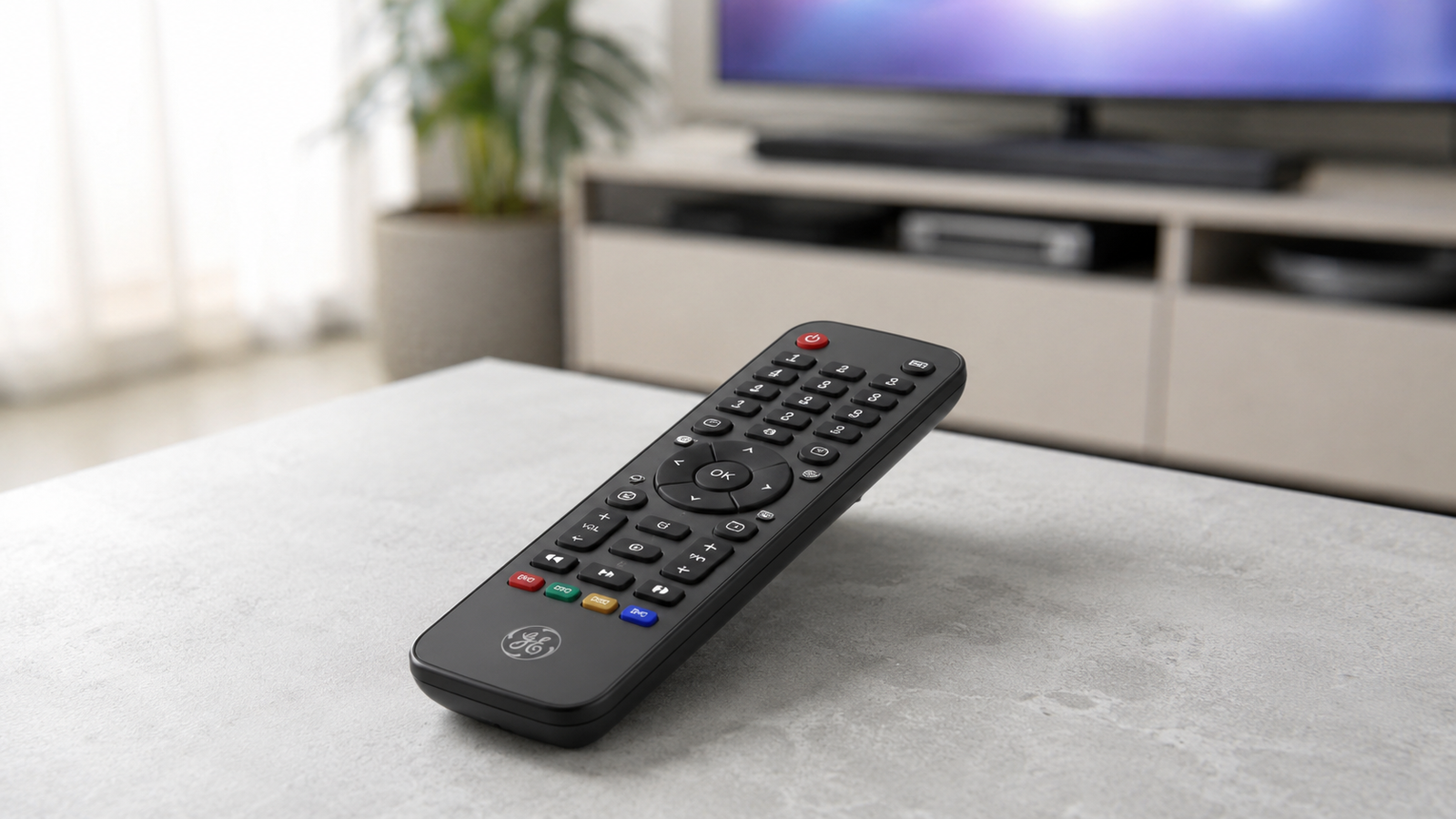
Losing track of which remote controls which device is one of those small daily frustrations that adds up over time. A GE universal remote solves that problem by letting one device operate your TV, DVD player, cable box, and more, but only if it is programmed correctly. This guide walks through everything you need to know about GE universal remote codes, how to find the right one for your device, and how to get your remote working smoothly without unnecessary trial and error.
What Are GE Universal Remote Codes
GE universal remote codes are short numeric sequences, usually three or four digits long, that tell your remote which brand and model of device it needs to communicate with. Every television, DVD player, soundbar, or cable box brand uses its own signal pattern, so the remote needs a matching code to “speak the same language” as your equipment. Once the correct code is entered, the remote can send power, volume, and channel commands the same way the device’s original remote would.
It helps to know that GE universal remotes are manufactured under license by a company called Jasco Products, which has produced these remotes for many years under the GE brand name. This is not unusual in the electronics world, but it explains why GE remotes share programming steps and code structures with some other budget universal remotes on the market. Understanding this background is useful because it means troubleshooting advice for Jasco-made remotes often applies across the GE lineup as well.
Why You Need the Right Code for Your Device
Entering the correct code matters because an incorrect one will either fail to connect at all or only partially control your device. A partial connection is often more frustrating than no connection, since you might get power and volume control but lose access to input switching or menu navigation. This is why taking a moment to identify your exact remote model and device brand before programming saves considerable time later.
Codes are not universal across all remote manufacturers, even though the term “universal remote” suggests otherwise. A code that works on an RCA or Philips universal remote will not necessarily work on a GE remote, since each manufacturer builds its own code database. That said, within the GE and Jasco family of products, codes tend to stay fairly consistent across similar remote versions, which makes the code list approach reliable once you know your remote’s version.
Identifying Your GE Remote Version
Before searching for codes, it is worth checking exactly which version of GE remote you own, since this affects which code list applies. Open the battery compartment on the back of the remote and look for a small sticker or printed label. Most modern GE remotes display a version marking such as CL3, CL4, CL5, or CL6, and this label is your starting point for finding accurate codes.
Each version generally reflects when the remote was released and which devices it supports out of the box. CL3, CL4, and CL5 remotes are older models that primarily use three and four digit codes and were built with a fixed number of TV brands in mind, including major names like Samsung, LG, Sony, and Vizio. CL6 is the newer generation and expanded coverage to include brands that became more common in recent years, such as Insignia Fire TV models and store brands sold under names like Onn. If your remote does not show any CL label at all, it is most likely an early version, and you should default to using three digit or basic four digit codes first.
Common GE Universal Remote Codes by Brand
While a complete brand-by-brand list is extensive, a handful of codes cover the most frequently searched television brands. For Samsung televisions, 0105 is one of the most reliable starting codes, though Samsung has released many TV models over the years, so trying a second or third code from the list is common if the first attempt does not work. LG televisions commonly respond to code 0004, and this tends to be more consistent across LG’s model range than some competing brands.
Sony televisions typically program successfully with code 0002, often on the first or second try, while Vizio televisions frequently use 5631. For newer TCL televisions running the Roku operating system, code 2891 is widely reported to work, and this same code often applies to Roku-branded streaming players as well, since TCL and Roku share underlying software. Store or house brand televisions, including many sold at large retailers, often reuse codes from bigger manufacturers, so if you cannot find a code listed specifically for your store brand, trying codes for major brands is a reasonable next step.
Step-by-Step: Programming with a Known Code
Once you have identified your remote version and located a code for your device, direct entry is usually the fastest programming method. Start by turning on the device you want to control and keeping it powered on throughout the process. Press and hold the Setup button on your GE remote until the small red indicator light turns on and stays lit, rather than blinking.
Next, press the button corresponding to your device type, such as TV, DVD, or CBL for cable boxes. The red light should blink once and remain steady, which confirms the remote is ready to accept a code. Enter the four digit code using the number pad, and if the code is accepted, the red light will turn off. At that point, aim the remote at the device and press the power button to test whether the connection was successful. If the device does not respond, repeat the process using the next code listed for your brand, since many brands have multiple valid codes tied to different manufacturing years or chipsets.
Programming Without a Code Using Auto Search
If you cannot find a matching code, or none of the listed codes work, GE remotes include a built-in auto code search feature that removes the guesswork. This method cycles through the remote’s internal code database automatically until it lands on one that controls your device. Begin by turning on the device and pointing the remote directly at it, since a clear line of sight matters for this process to work reliably.
Hold the Setup button until the red light stays on, then press the device button, such as TV or DVD, just as you would for direct entry. Instead of typing a code, press the Channel Up button repeatedly, pausing roughly one to two seconds between presses. The remote sends a new code with each press, and the device should eventually power off, which signals that a working code has been found. When that happens, press Enter or the matching device button again to lock in and save that code.
Troubleshooting When Codes Don’t Work
A code that fails to work is one of the most common frustrations with universal remote setup, and there are usually a few explanations worth checking. Weak or old batteries are a surprisingly frequent cause, since a remote with low power may send inconsistent infrared signals even when the correct code is entered. Replacing the batteries before troubleshooting further can save a lot of unnecessary repetition.
Distance and obstruction also matter more than people expect. Infrared signals require a fairly direct line of sight between the remote and the device’s sensor, so standing too far away or having objects blocking the sensor can make a correctly programmed remote appear broken. It is also worth remembering that GE universal remotes rely entirely on infrared technology, which means any device using only Bluetooth or Wi-Fi for control, without a built-in infrared receiver, simply cannot be operated by a GE remote no matter which code is used. Checking your device’s manual for infrared support is a useful early step if programming consistently fails.
Special Considerations for Streaming Devices
Streaming devices deserve their own mention because they behave differently from traditional televisions. Many GE universal remotes include a dedicated STR or STRM button specifically for streaming-capable devices, and using this button instead of the standard TV button often produces better results. Devices like the Roku Ultra box model include a built-in infrared receiver, which makes them compatible with GE remote programming, while other streaming devices that rely solely on wireless connections will not respond to any universal remote code.
This distinction trips up a lot of users who assume every streaming stick or box works the same way. Before spending time testing multiple codes on a streaming device, it is worth confirming whether that specific model has infrared support at all, since no amount of correct programming will help if the hardware itself cannot receive infrared signals.
Final Tips for a Smooth Setup
Successfully programming a GE universal remote comes down to patience and process rather than luck. Start by confirming your remote’s CL version, then try the most commonly reported code for your device brand before moving to alternate codes. If direct entry does not produce results after a couple of attempts, switch to the auto code search method rather than continuing to guess, since it is designed specifically for situations where the listed codes do not match your exact model.
Keeping a small note of which code worked for each device can also save time if you ever need to reset the remote or reprogram it after a battery change. Universal remotes are meant to simplify your entertainment setup, and once programmed correctly, a GE remote can reliably manage several devices at once, cutting down on remote clutter and making everyday use noticeably easier.